
Image to video is the one AI feature that actually changed shape in 2026. A year ago "animate a photo" meant a slow zoom across a still. Now you hand a model one frame, describe the motion, and it invents the next ten seconds — camera move, cloth physics, and on some models a synced audio track it wrote itself.
The problem is that almost every "best AI image to video tools" list you will find is published by a company selling one of the tools on it. So this guide does two things differently. It is organised by what you are animating — a product shot, a portrait, a piece of concept art — because those are genuinely different jobs. And every number below was checked against the vendor's own page on 21 August 2026, with the ones we could not confirm labelled instead of quietly rounded off.
How We Picked These Tools
Three filters cut a long list down to ten:
It has to generate motion, not fake it. A Ken Burns pan across your photo is not image to video. A tool earns a place here only if you upload a still and the model generates new frames from it.
It has to be usable without an API key. Several of the strongest models in 2026 — Sora 2, Veo 3.1, Kling 3.0, Seedance 2.5 — are reachable by normal people only through a product. Where that is the case, we list the product, not the model.
The free tier has to be described honestly. This is where the category is worst. Several vendors contradict themselves on their own website about whether free exports are watermarked. We say so rather than picking the flattering version.
What we could and could not verify: Runway, Adobe, Canva, InVideo, MagicLight and Leonardo publish enough on their own pages to quote directly. Hailuo (MiniMax), SeaArt, D-ID and Pippit all render pricing in JavaScript, block crawlers, or geo-block entirely — for those, prices below are labelled as third-party or given as a range. Where you see "not published", it means the vendor genuinely does not state it anywhere public, not that we skipped looking.
Best AI Image to Video Tools in 2026 at a Glance
| Tool | Best for | Clip length | Free tier |
|---|---|---|---|
| Runway AI | Cinematic control | 2–10s (Gen-4.5) | 125 credits, one time |
| MiniMax IO (Hailuo) | Longest single clip | 4–15s (H3) | Yes, watermarked |
| SeaArt AI | Trying many models free | Varies by model | ~130 stamina/day |
| Adobe Firefly | Commercially safe output | ~5s, up to 15s | Daily generations |
| InVideo | Model choice on one bill | 8s (image to video) | Weekly credits |
| Pippit AI | Product and ecommerce | Up to 30s | Daily credits |
| Magic Studio (Canva) | Non-designers | Fixed 5s | Yes, in monthly allowance |
| MagicLight AI | Story and character work | ~10–15s | 1–2 generations |
| Leonardo AI | Animating AI art | Not published | 150 tokens/day* |
| D-ID | Making a portrait talk | Up to 5 min | 14-day trial |
*Leonardo's free plan cannot upload your own images — see its entry below.
Best for Cinematic Motion from a Single Still
This is the headline job: one good frame in, a shot that looks like it came off a camera rig out.
1. Runway AI — Best for Directed, Repeatable Motion
Runway AI is the tool that treats image to video as a craft rather than a party trick. You set your still as the first frame, prompt the motion, and Gen-4.5 fills in the rest; Gen-4 Turbo is the cheaper, image-input-only sibling for when you need volume over polish. Keyframes let you pin a start and end state, which is the single most useful control in this whole category — it is the difference between "something moved" and "the camera pushed in on her face".
Where it wins: control and consistency. Runway's docs are also the most honest in the category: durations, credit costs and output ratios are all published.
Where it does not: resolution. Runway's API caps Gen-4.5 and Gen-4 Turbo at 1280×720-class ratios, and 4K appears on the pricing page as upscaling, not native generation. If you need a native 1080p master, look elsewhere or plan to upscale.
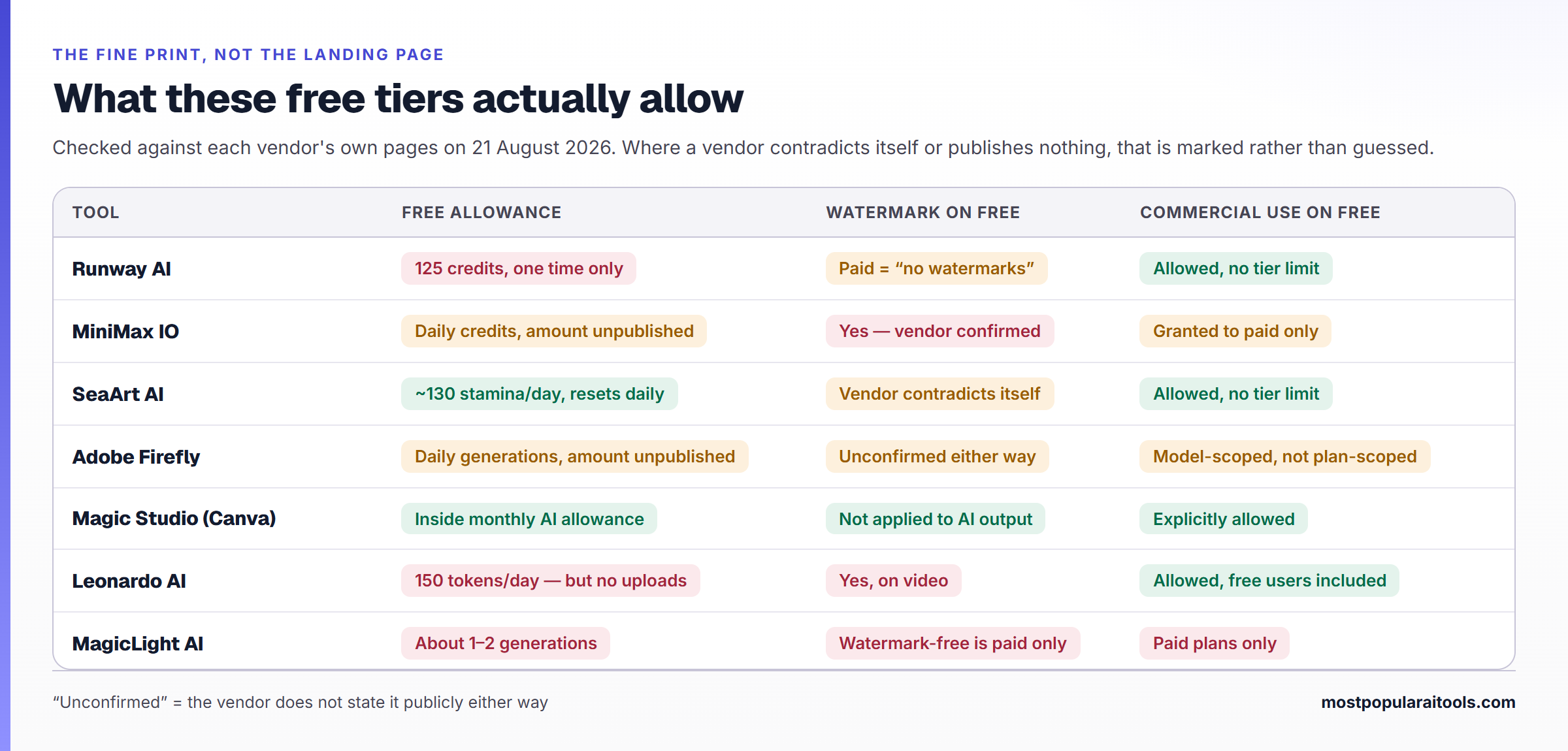
Pricing (verified 21 Aug 2026): Free gives 125 credits — one time, not monthly — plus 5GB storage. Standard is $15/month, or $12/month billed annually, with 625 credits and "No watermarks" listed explicitly as a paid feature. Pro is $35/month, Max $95/month. Gen-4.5 burns 12 credits per second of video and Gen-4 Turbo 5, so the free 125 credits is roughly ten seconds of Gen-4.5 before you are asked to pay. Runway's Terms draw no free-versus-paid line on commercial use — but note you also grant Runway a licence to train on your inputs and outputs on every tier, paid included.
2. MiniMax IO (Hailuo) — Best for the Longest Single Take
MiniMax IO, the company behind Hailuo, shipped MiniMax H3 on 31 July 2026, and it is currently the most generous single-clip generator a consumer can reach: 4 to 15 seconds, 768P or 2K, with native stereo audio generated in the same pass rather than dubbed on afterwards. The image to video flow takes one image as your first frame, or two images as first and last, which is a genuinely different way to direct a shot.
Where it wins: length and sound. Fifteen seconds with generated audio is more than most competitors give you at any price, and the first-and-last-frame mode makes transitions predictable.
Where it does not: transparency. MiniMax's own pages disagree with each other about what a subscription costs, and the plan page will not load for anything that is not a browser.
Pricing (partly unverified): free downloads carry a watermark — that one is confirmed in MiniMax's own subscription terms, which also reserve the explicit commercial-use grant for paid subscribers. The paid price is genuinely contested: MiniMax's terms page lists Standard at $14.99/month while Hailuo's own blog says $9.99, and third-party trackers say lower still. Budget roughly $8–15/month and check hailuoai.video/subscribe before you commit. On the API side the numbers are firm: $0.08 per second at 768P and $0.13 per second at 2K.
3. SeaArt AI — Best Free Way to Try Many Models
SeaArt AI is not one model, it is a front door to a dozen. Its Img2Vid mode lets you upload a still, optionally set a second image as the end frame, and run it through SeaArt's own models or through Veo 3, Sora 2, Kling 2.6, Seedance 1.5 Pro, Wan 2.6 and Hailuo — all billed from one daily "Stamina" balance rather than a separate subscription each.
Where it wins: breadth on a free account. If you do not yet know which model suits your image, this is the cheapest place to find out.
Where it does not: consistency and clarity. Because every model has its own ceiling, there is no single answer to "how long can a clip be" — and one hands-on review found clips over about four seconds prone to physical distortion and motion stutter.
Pricing (third-party): free accounts get roughly 130 Stamina a day, resetting at 00:00 UTC and never accumulating — although SeaArt's own docs say 150 on a different page. SeaArt does not publish prices in any machine-readable form, and third-party trackers disagree so badly ($5.99 versus $2.99 for the entry tier) that we will not print one. On rights, SeaArt's FAQ is unusually clear and applies no tier restriction: the IP in what you generate belongs to you, and commercial use is not prohibited. Watermarking on free output is genuinely unresolved — SeaArt's marketing page claims no watermark, reviewers say otherwise.
Best for Commercial and Client Work
Two tools stand out once someone is paying for the output, for opposite reasons: one is safe, the other is flexible.
4. Adobe Firefly — Best for Work That Has to Clear Legal
Adobe Firefly has a dedicated image to video flow: upload a photo, illustration, 3D render or piece of concept art, prompt the motion, download an MP4. What makes it different is not the motion quality — it is that Adobe's own Firefly Video Model is trained only on licensed and public-domain content, is not trained on your work, and attaches Content Credentials to what it makes.
Where it wins: defensibility. For an agency deliverable or anything going near a brand's legal team, this is the least frightening option on the list.
Where it does not: the safety only applies to Adobe's own model. Firefly is now a hub that also runs Veo 3.1, Runway Gen-4.5, Luma Ray3.14 and Kling 3.0 from the same interface, and Adobe states plainly that commercial-usage eligibility depends on which model you picked. Choosing a partner model inside Firefly quietly discards the reason you chose Firefly.
Pricing (verified 21 Aug 2026): Firefly Standard is $9.99/month with 2,000 generative credits and "up to 20" five-second videos; Pro is $19.99/month, Pro Plus $49.99/month, Premium $199.99/month. The free tier is now a daily allowance rather than a monthly credit pool, and Adobe deliberately publishes no number for it. Clip length depends on model — Adobe's FAQ says most run to 8 seconds with some reaching 15, while the image to video page itself says about five. Whether free-tier exports carry a watermark is not stated on any Adobe page we could read, so do not assume either way.
5. InVideo — Best for Model Choice on One Bill
InVideo started as a script-to-video tool with a stock library and has become, more usefully, an aggregator: you upload a still, describe the motion, and pick the engine. Veo 3.1, Sora 2, Kling 3.0, Seedance, Runway Gen-4.5 and LTX all sit behind one credit balance, and InVideo publishes a full per-model table of what each costs, how long it can run and what resolution it reaches.
Where it wins: that pricing table. Almost nobody else in this category tells you the cost of a generation before you spend it.
Where it does not: the free plan is barely documented. InVideo's pricing page does not list a free tier at all; the help centre only says "limited credits" resetting weekly on Monday at 00:00 UTC, and never says whether free accounts can reach the premium models at all — which is the whole question for image to video.
Pricing (verified 21 Aug 2026): Plus is $20/month month-to-month, or $17/month billed annually at $200/year, with 75 credits. Max is $100/month, Generative $200/month, Elite $1,000/month. Every paid plan advertises unlimited watermark-free exports; free previews and free exports are watermarked, and re-exporting after you subscribe is what removes them. On rights, InVideo's terms grant a perpetual, worldwide, royalty-free licence to commercialise outputs with no free-tier carve-out — but anything containing licensed stock inherits that library's restrictions.
Best for Product and Marketing Videos
Different job entirely: the input is a product shot or a brand asset, and the output has to sell something.
6. Pippit AI — Best for Ecommerce Product Video
Pippit AI is ByteDance's, built on the same Seedance line as Dreamina and badged "powered by CapCut". Its image to video path is aimed squarely at sellers: upload a product photo, a character visual or a branded asset and Seedance 2.5 animates it into a moving clip, with timestamp control and footage extension. Vendor-stated ceilings are the most aggressive here — up to 30 seconds in a single generation, extendable twice more, with 4K export.
Where it wins: length and commercial framing. Thirty seconds is a usable ad, not a demo clip.
Where it does not: availability and honesty about the free tier. Pippit currently geo-blocks a number of regions outright, and its own site contradicts itself: the pricing page sells "Remove watermark" as a paid perk while the image to video landing page claims no watermark even on free.
Pricing (mid-July 2026 snapshot): Starter listed at $20/month with a 40%-off promotional price of $12/month and 2,100 credits; Plus $36/month, Pro from $90/month. Treat the $12 as a promo that will lapse. The free plan advertises "free daily credits" without ever saying how many, and "unlock advanced AI models" is listed as a paid-only benefit — which implies Seedance 2.5 image to video may not be reachable free at all.
7. Magic Studio (Canva) — Best for People Who Are Not Designers
Magic Studio (Canva) hides a real image to video model inside a design tool. Select an image in the editor, open Tools, pick Image to Video, and choose Smart mode for automatic motion or Custom mode to prompt it. The output is deliberately narrow: fixed at five seconds, no audio, and always in your source image's aspect ratio.
Where it wins: it is right there. The clip lands on a canvas next to your text, brand kit and export presets, so the distance from "photo" to "posted" is about four clicks.
Where it does not: control. You cannot change the length, add audio in the same step, or use it on Canva's premium stock. Note too that the Veo 3 feature Canva markets heavily is a separate text-to-video tool called Create a Video Clip, it is an Ultra-tier feature, and Canva Free cannot use it.
Pricing: Image to Video works on the free plan, drawing on Canva's monthly AI allowance — up to 200 uses of standard AI tools or 20 of premium tools, resetting on the 1st at 00:00 UTC. Canva does not say which of those two buckets Image to Video draws from, so we cannot tell you how many free clips that is. Canva Pro is $18/month or $144/year per third-party trackers and Apple's App Store listing; Canva's own pricing page will not serve a price to a crawler. Free-plan commercial use is explicitly allowed, and watermarks apply only to premium library elements, not to AI output.
Best for Story and Character Animation
8. MagicLight AI — Best for Multi-Shot Story Videos
MagicLight AI animates a still while "feature locking" the subject so a character stays recognisable across shots — which matters more than raw motion quality the moment you need more than one clip. Clips run about 10 to 15 seconds, and you chain them into longer pieces rather than generating one long take. Under the hood it is an aggregator of roughly twenty models, defaulting to MiniMax H3.
Where it wins: continuity across a sequence, plus narration, lip sync and captions in the same workflow.
Where it does not: the free tier is close to a demo, and commercial rights are paid-only — a general commercial licence appears on all four paid tiers and on none of the free plan.
Pricing (verified 21 Aug 2026): Standard is $12/month, currently discounted to an effective $6/month if you pay $72 for the year — that is an annual promo, not a monthly price. Pro is $35/month, Ultra $90/month. "1080P HD Video, No Watermark" is listed on every paid tier and on no free one. The free plan is one character, two image regenerations and one dynamic conversion; MagicLight's FAQ describes it as enough for one or two videos.
9. Leonardo AI — Best for Animating Art You Generated There
Leonardo AI has a proper image to video endpoint with its own Motion 2.0 and Motion 2.0 Fast models, plus resold Veo 3 and Kling. If you already generate stills in Leonardo, animating them is one click away and the style carries over cleanly.
Where it wins: a tight loop from prompt to still to motion inside one tool, and unusually clear rights — Leonardo's FAQ says commercial use applies to free users too.
Where it does not: here is the catch that disqualifies it for most people reading this article. Leonardo's help centre states plainly that only paid users can upload their own images. On the free plan you can animate images you generated inside Leonardo and nothing else. Motion 2.0 also caps at 720p, and Leonardo does not publish a clip length or a token cost per video anywhere.
Pricing (third-party): free gives 150 tokens a day that expire nightly, and free video exports are watermarked. Paid tiers are widely reported at $12, $30 and $60 per month, but Leonardo's own pricing page returns 403 to everything automated, so treat those as third-party figures.
Best for Making a Portrait Talk
10. D-ID — Best for Talking-Head Video from One Photo
D-ID does a narrower thing than everything above and does it well: feed it one portrait and either typed text or an audio file, and it animates the face to speak, with lip sync, blinks and small head movement. There is no scene motion and no camera move — this is not a general image to video model, and it is the right tool only when the job is a talking presenter.
Where it wins: length. Five minutes, against ten or fifteen seconds everywhere else on this list, because it is animating a face rather than inventing a world.
Where it does not: watermarks and licensing. Per D-ID's own FAQ, no plan is fully watermark-free — Trial and Lite carry a D-ID logo, Pro and Advanced carry a generic AI watermark, and Enterprise can customise but not remove it. The trial is non-commercial, and the Lite plan is contractually restricted to non-commercial use too, so the cheapest paid tier cannot legally be used for client work.
Pricing (unverified): D-ID renders its pricing in JavaScript and its help centre blocks crawlers, so no figure here comes from D-ID. Trackers cluster Lite around $5–6/month and Pro around $16–29/month, and they contradict each other enough that we would not act on them. Check the plan page in a browser. Input images must be JPEG or PNG under 10MB, output is MP4 capped at 1080, and billing rounds up to the nearest 15 seconds.
Which AI Image to Video Tool Should You Actually Use?
Match the input to the tool and stop paying for overlap:
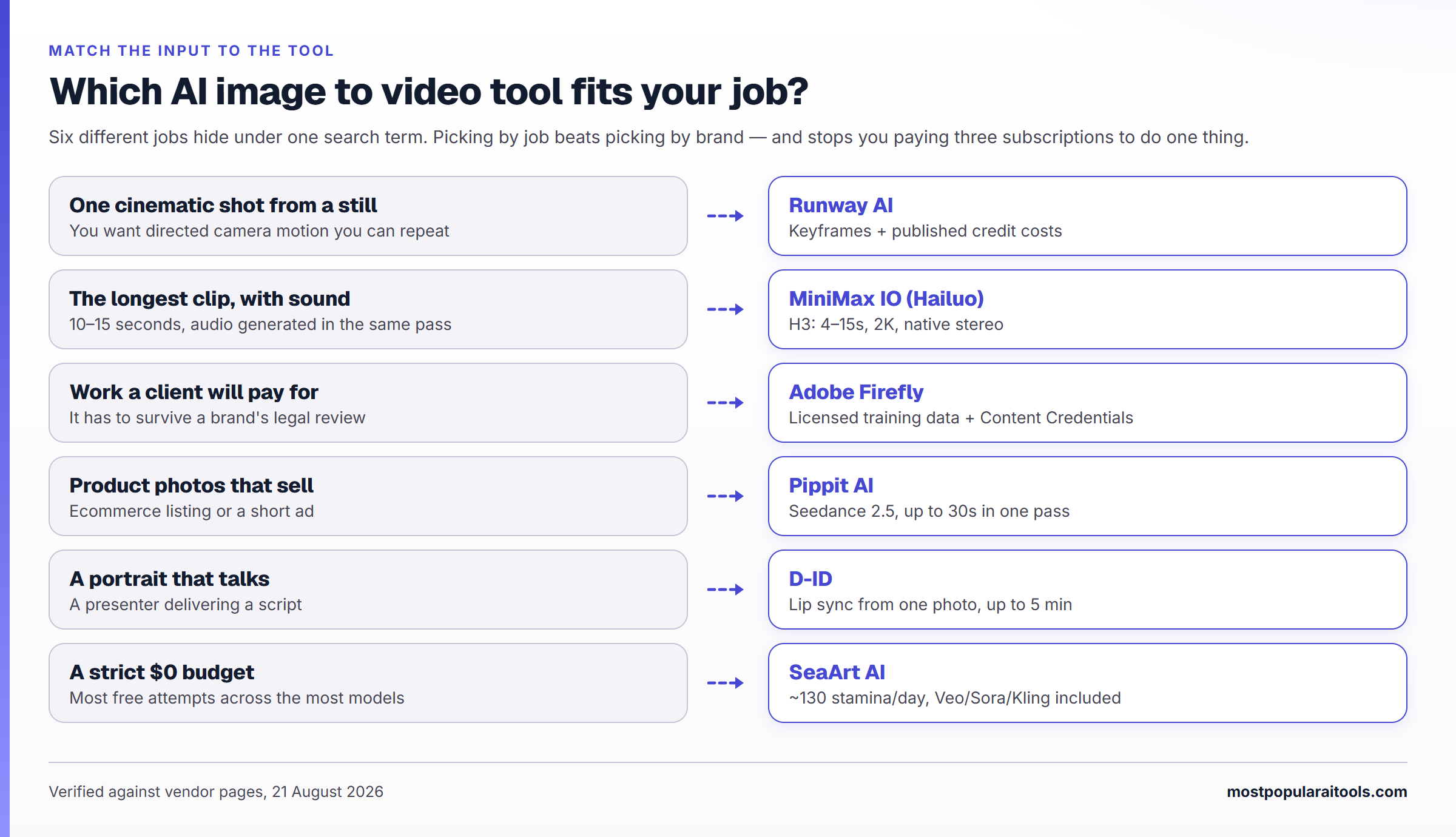
You want one great-looking cinematic shot → Runway AI for control, MiniMax IO when you need the clip to run past ten seconds or carry sound.
The video is for a paying client → Adobe Firefly on Adobe's own model, and check which model you selected before you export.
You are animating product photos → Pippit AI, if it serves your region.
You are not a designer and the output is social → Magic Studio (Canva).
You need the same character across several clips → MagicLight AI.
You want a person to deliver a script → D-ID, on a plan above Lite.
You are on a strict $0 budget → SeaArt AI gives the most free attempts across the most models. Not Leonardo — its free plan cannot take your photo at all.
What AI Image to Video Still Gets Wrong in 2026
The demo reels are not the daily experience. Four failure modes show up across every tool here:
Motion drifts past about four seconds. Subjects morph, limbs multiply, and physics gives up. Longer clip ceilings mostly buy you more chances to see it, which is why first-and-last-frame control matters more than max duration.
Text in the source image warps immediately. Logos, packaging and signage rarely survive. If your product has type on it, expect to composite the clean label back over the clip.
"Free" is doing a lot of work. Runway's free credits are one-time, not monthly. Leonardo's free plan cannot upload your own image. Pippit gates advanced models behind payment. MagicLight makes commercial rights paid-only.
Vendors contradict themselves on watermarks. Pippit and SeaArt both say two different things on two of their own pages. Test-export one clip before you plan a campaign around a free tier.
Frequently Asked Questions
What is the best AI image to video tool in 2026?
There is no single best one, which is why this list is split by input. For a directed cinematic shot, Runway AI. For the longest single clip with generated audio, MiniMax IO (Hailuo). For client work that has to be commercially defensible, Adobe Firefly on Adobe's own model. For product photos, Pippit AI. For a talking portrait, D-ID.
Is there a genuinely free AI image to video generator?
SeaArt AI comes closest: roughly 130 Stamina a day, refreshed daily, across a dozen models including Veo, Sora and Kling, with no tier restriction on commercial use in its own FAQ. Canva's Image to Video also runs on the free plan inside its monthly AI allowance. Be careful with the others — Runway's 125 free credits are granted once and never again, and Leonardo's free plan cannot upload your own images at all.
How long can an AI-generated video from an image be?
Most consumer tools land between 5 and 15 seconds per generation. Canva is fixed at 5. Runway's Gen-4.5 runs 2 to 10. MiniMax H3 runs 4 to 15. Pippit claims up to 30 seconds in one pass. D-ID is the outlier at 5 minutes, because animating a face is a much easier problem than generating a scene. Longer pieces are made by chaining clips, not by generating one long take.
Can I use AI image to video output commercially?
Usually yes, but check two separate things: the tool's licence and your source image. Runway, Canva, SeaArt, InVideo and Leonardo all grant commercial use without gating it behind a paid plan. MagicLight reserves commercial rights for paid tiers, and D-ID's Trial and Lite plans are contractually non-commercial. Separately, animating a photo of a real person, a copyrighted character or branded packaging is a rights problem no tool's terms will solve for you.
Do these tools add a watermark to free exports?
Most do. Runway lists "no watermarks" as a paid feature, MiniMax confirms free downloads are watermarked, Leonardo watermarks free video, InVideo watermarks free exports, and MagicLight advertises watermark-free output only on paid tiers. Canva is the clear exception: its watermarks apply to premium library elements, not AI output. Pippit and SeaArt contradict themselves on their own sites, so export a test clip before you rely on it.
What is the difference between image to video and text to video?
Text to video invents the whole scene from a description, so you get novelty but little control over how it looks. Image to video starts from a frame you already control — your product, your character, your composition — and only generates the motion. For anything with a brand or a likeness in it, starting from an image is almost always the better workflow.
The Short Version
Start from the frame you have, not the tool everyone is talking about. A product shot goes to Pippit or Canva. A piece of concept art goes to Runway or Leonardo. A face that has to talk goes to D-ID. Anything a client will pay for goes through Adobe's own Firefly model, not a partner model borrowed inside it. And whatever you pick, export one test clip on the free tier before you build a plan around what the marketing page promised.